Document Store Data
The Document Store Data tab is the primary section for viewing individual collection information.
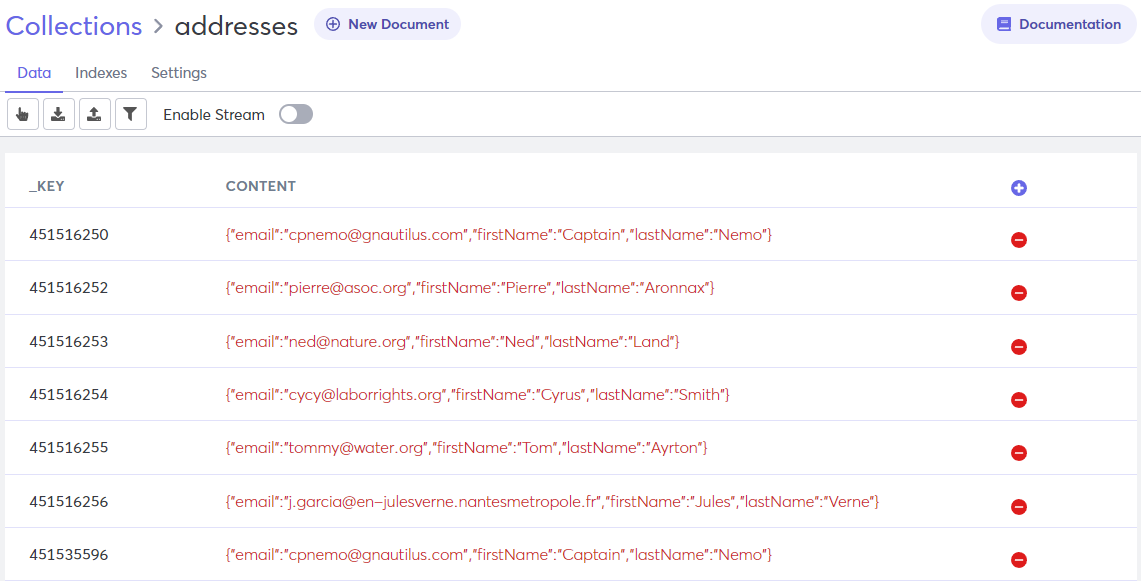
This is a complex tab, which contains the following items. Hover your cursor over an icon to see what it does.
Collection Name
The name of the collection that you are viewing is displayed above the tab, in the upper left corner of the screen.
Results
Number of results per page. Default is 10. Click the drop-down arrow to select a different number.
Move Documents between Collections
Move documents from one collection to another or delete multiple documents. Click the Edit Documents (finger) icon to select and then move or delete documents.
Import Documents
Import documents from a file. For more information, refer to Add Documents from a File.
Export Documents
Export allows you to download the documents in the collection as a JSON or CSV file, which can be used for data pre-processing, cleaning, analytics, and so on. You can export all documents or apply a filter to export a subset.
Filter Documents
Click the Filter Collection (funnel) icon to apply a filter to your document view.
This feature can be used to perform a lookup within the document collection. You can add multiple filters and sort by attribute.
- Enter the attribute on which to filter.
- Select logical expressions/operators from the drop-down menu.
- Enter the value to filter against.
Enable/Disable Streams
Click to turn streams on or off for this collection. When streams are enabled, you can access the Stream tab.
Create Document
Create a new document inside the selected collection and add data in the form of attributes and values. For more information, refer to Add Documents to Collection.
Delete Document
Click the red minus next to a document to delete it from the collection.
Key
The primary key value for the document. Every document must have a unique key.
This key can be set manually by the user or automatically generated by Macrometa when the document is added to the collection.
Content
This column displays the document data in the following format: { “//attribute_1// : //value_1//, “//attribute_2// : //value_2//, …}
Edit a Document
Click a document open the document in edit mode.
Page Forward or Back
If you have enough documents in your collection, then Macrometa displays them in separate pages. Click the arrows to navigate forward or back.
Change the number of results displayed in a page in the Results drop-down list.